
iRacing now supports CloudXR with the Apple Vision Pro for immersive racing!
iRacing still requires a Windows PC.
iRacing for Apple Vision Pro utilizes foveated streaming to render the sharpest content in the driver’s direct line of sight.
Using Nvidia's CloudXR technology, Apple Vision Pro blends your real-life racing rig with the virtual cockpit, aligning your physical steering wheel with the one in-game.
Graphic rendering is performed on the local Windows PC equipped with NVIDIA’s RTX GPU, where frames are encoded and shared wirelessly over Wi-Fi to the iRacing Connect app installed on visionOS.
NVIDIA CloudXR: https://blogs.nvidia.com/blog/nvidia-cloudxr-apple-vision-pro/
TABLE OF CONTENTS
- How it Works
- Exclusive Immersion
- System Requirements
- Windows Prompts Upon Release
- Getting Started
- Troubleshooting
How it Works
Your Windows PC runs the simulation, as usual, but now, a new app for the Apple Vision Pro, iRacing Connect, establishes a connection between the headset and your PC, allowing the simulation visuals and audio to stream to the headset from your PC over your local network.
Exclusive Immersion
Exclusive to the Apple Vision Pro: a more immersive cockpit experience, where you can see your own actual arms and hands on the wheel, thanks to the headset’s advanced pass-through technology.
System Requirements
A Windows PC that meets the “high-end” specifications indicated here: System Requirements - iRacing.com
NVIDIA graphics card model 4070Ti+ or 5070Ti+, running driver version 580+.
An active subscription to iRacing
Apple Vision Pro headset, OS 26.4 or higher, with iRacing Connect app (a free download from the Apple App Store)
A local network
- A Wi-Fi router capable of over 1000Mbps on the 5GHz band (Wi-Fi 6 +).
A 5GHz Wi-Fi network adapter or Gigabit+ Ethernet connection for the PC
The Apple Vision Pro and PC must be on the same local network
Flexible and adjustable seating position to best take advantage of the immersive passthrough “your own hands on the wheel” experience, since your physical seating position will need to approximate the position of the virtual driver in the sim.
Windows Prompts Upon Release
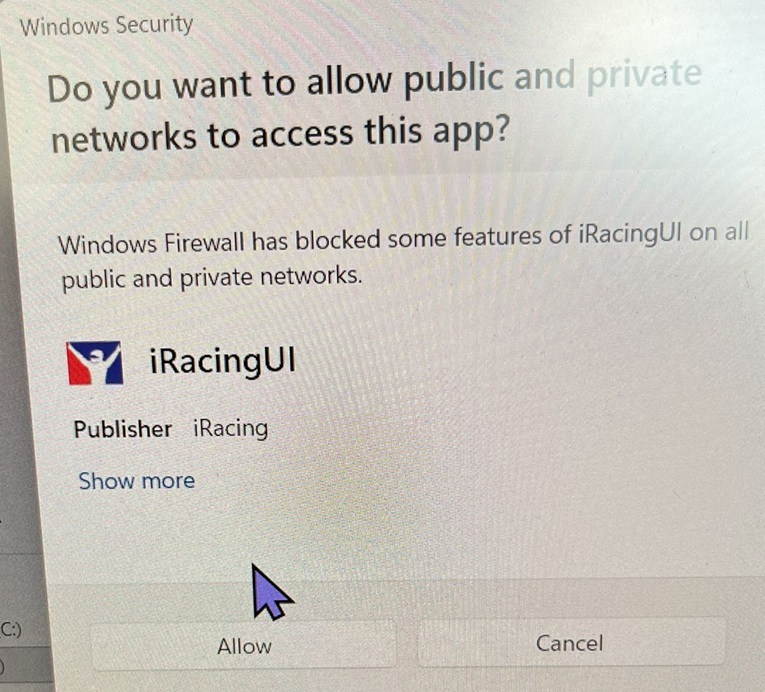
Note: all customers with Nvidia graphics cards will receive these Windows prompts once the update to Apple Vision Pro is released. If you are using the Apple Vision Pro with iRacing, choose “Allow” for these prompts. If you chose "Cancel", refer to the Troubleshooting steps to allow communication through your Windows Firewall.
Getting Started
Set up Apple Vision Pro according to the manufacturer’s instructions.
On Apple Vision Pro, download the iRacing Connect app from the Apple App Store.
On your PC, launch the iRacing UI.
In the iRacing UI, choose “CloudXR” from the display mode drop-down in the upper-right of the UI.
In the iRacing UI, set up or join a test session or race and launch the iRacing simulator.
On Apple Vision Pro, launch the iRacing Connect app, and follow the on-screen instructions.
Once your Apple Vision Pro is connected to iRacing, you can control iRacing using the mirror window as you would normally.
To adjust the level of immersion, twist the crown wheel. If you are using hand tracking, HMD device centering is performed automatically during the calibration process. If you are not using hand tracking, HMD centering can be performed by holding down the crown wheel.
Troubleshooting
Connection Issues
If the Apple Vision Pro cannot see or connect to the customer’s PC, these steps should be taken:
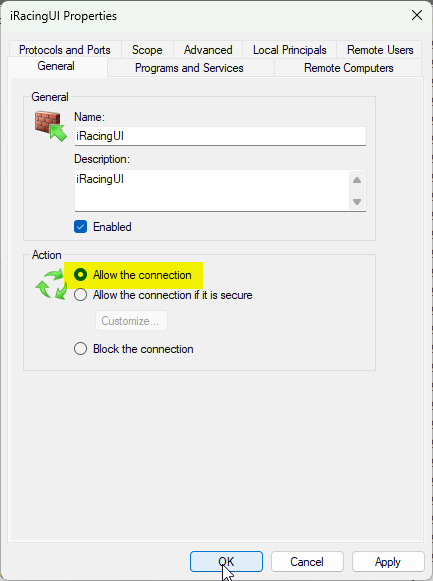
Go to Windows Defender Firewall->Advanced Settings->Inbound Rules; right click on and click Properties, then select “Allow the Connection” on all iRacingUI and cloudxrservice instances:
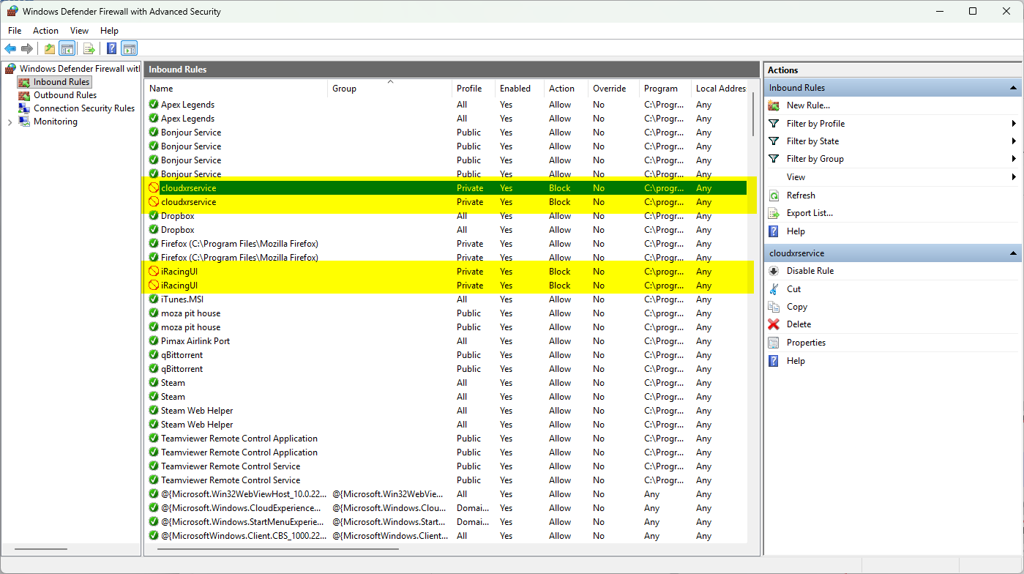
If rules for these programs do not exist, you may need to manually add them
Your firewall(s) must have port 55000 open
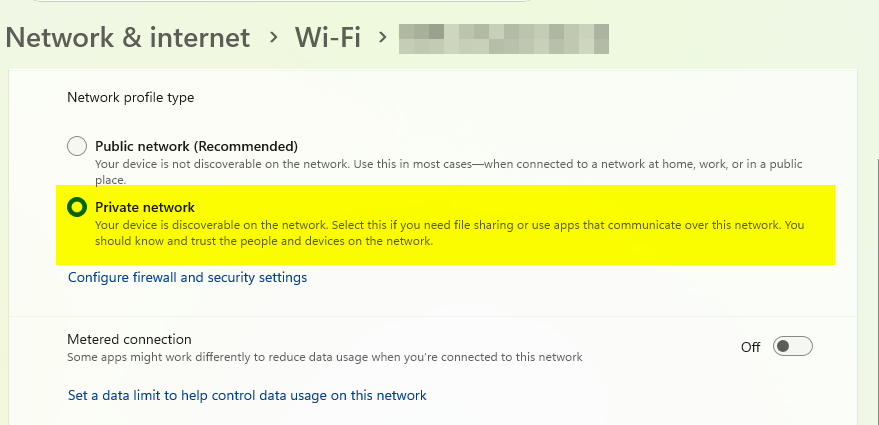
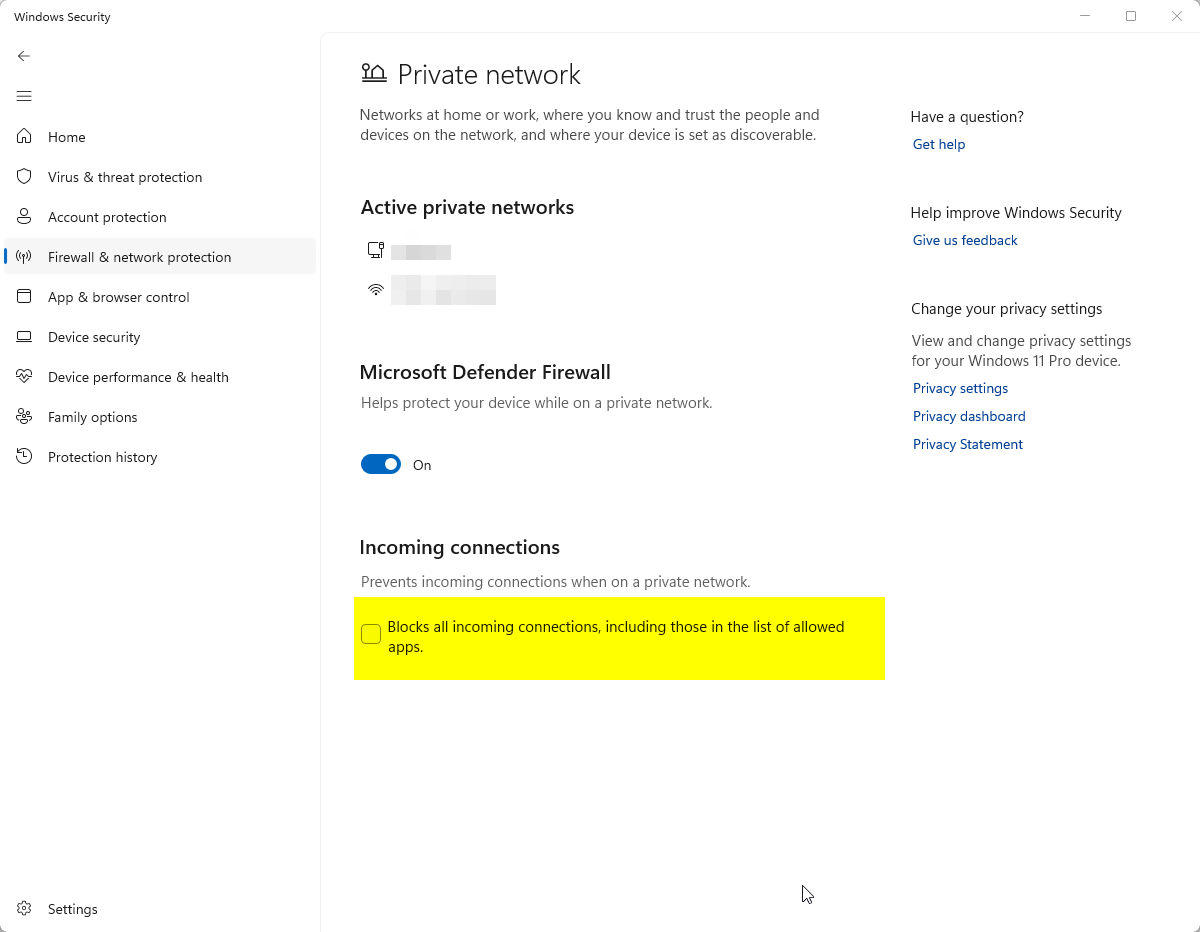
In Windows, the Wi-Fi network has to be set as a Private Network in Network Settings, and Private Networks must allow incoming connections:
Headset Calibration/Tracking Issues
During camera calibration, iRacing Connect asks the driver to place their hands on the wheel, then rotate the wheel. The headset’s cameras look for the racer’s hands during this procedure. The procedure may not work well or tracking may be lost if the cameras cannot see the driver’s hands well enough, if there is not good contrast between the wheel and hands, or if the wheel itself has too extreme light and dark contrasting elements. Examples that can cause these conditions:
There is not enough ambient light in the room
The driver is wearing gloves, wristbands, a watch, or other hand/wrist covering.
The wheel has white grip tape (which the camera may confuse with the driver’s hands):
Streaming performance Issues
If you are experiencing poor streaming performance such as stutters, choppy video, or high latency. Please ensure that all wireless devices are connected to your 5GHz network and that router and PC WiFi adapter (if used) supports at least 1000Mbps over WiFi 6/6E. The Apple Vision Pro does not support WiFi 7.
Many lower end routers such as those provided by your internet service provider can cause a bottleneck with VR streaming. If you are using the router provided by your ISP you likely require an upgrade. We recommend using a modern router with a powerful chipset, including but not limited to the Asus BE86U, TP-Link Archer BE6500, or similar high performance routers. Similarly, many onboard WiFi adapters built into motherboards do not support the bandwidth necessary for a smooth experience, and you may have to your WiFi adapter as well, or switch to a wired Gigabit ethernet connection.
If your network sees a lot of traffic from other devices, such as another user on the network that likes to stream content or game, or if your router is located far away from your simulator, it is recommended to setup a dedicated router for wireless VR. For more information please see this guide. We do not recommend using a Puppis S1 for the high bitrate used by the Apple Vision Pro.
This information is subject to change.